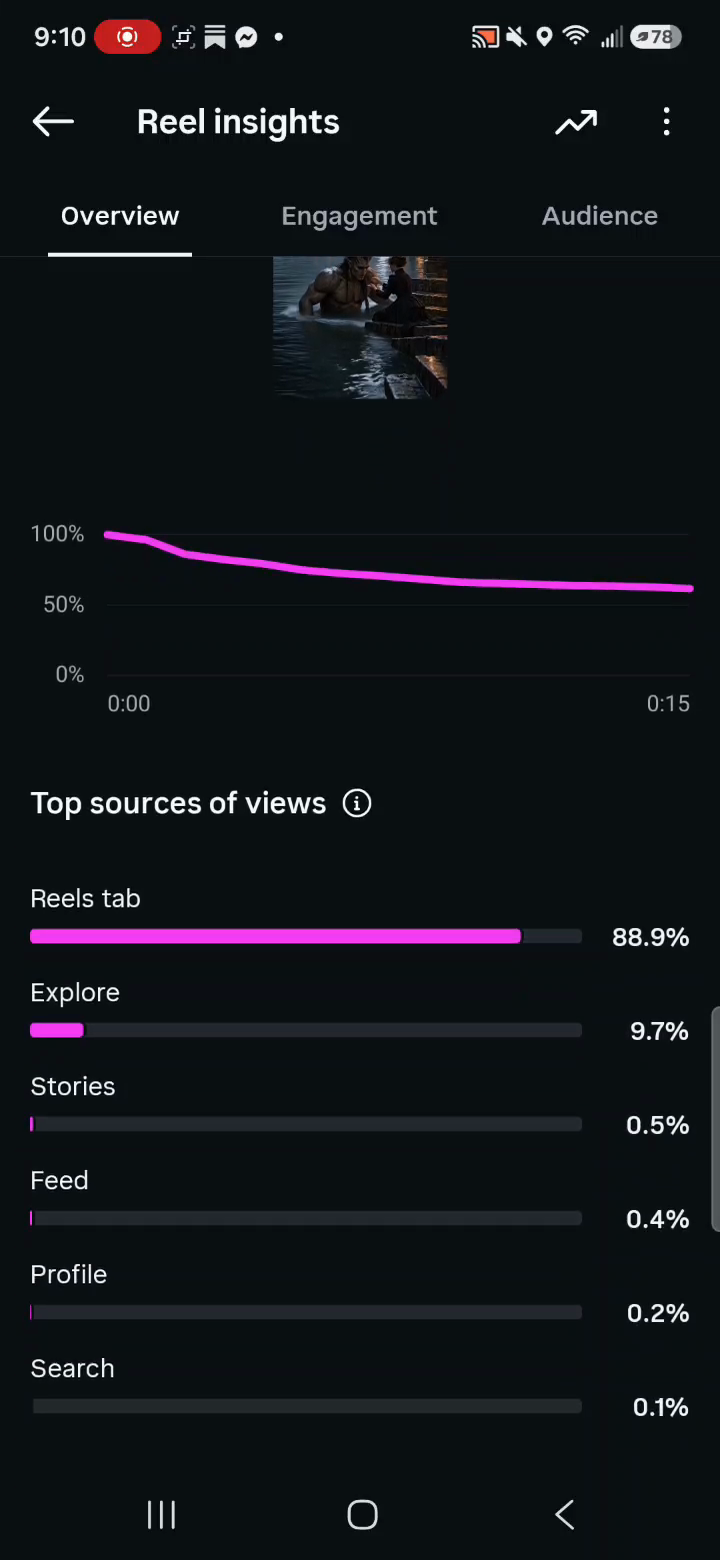
This is the cinematic format I use: choose a moment from the actual book, design one text-free scene image, animate that image, then add the words in an editor. The reel is a miniature scene with a reveal, not a trailer that tries to explain the whole book.
Watch my Flotsam example in order
This is the same scene at four stages. Work through the four stages below in order so you can see what each production step adds.
1. The generated, text-free first frame
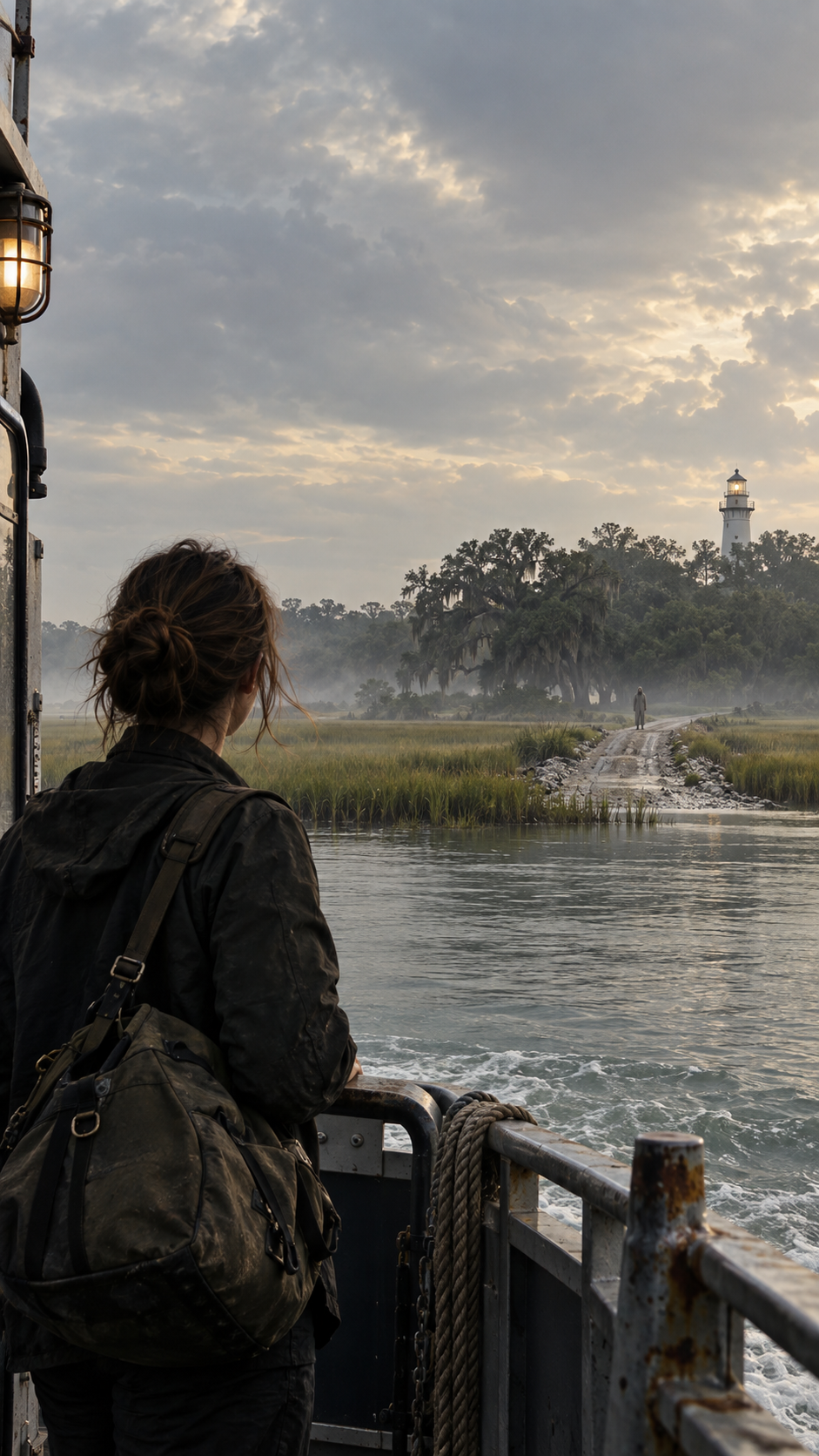
The frame establishes the causeway, distant figure, marsh, and uneasy atmosphere. It leaves open sky for the words. At this stage, nothing is animated and there are no captions.
2. Watch the clean animated scene, before captions
The video adds a slow push and subtle environmental motion. Watch the water, mist, hair, and distant light. It is still a single moment, with the image doing the mood work before any text appears.
3. Watch the scene with kinetic captions
This production-stage version adds the book's quoted detail in timed phrase beats: “recovered from the marsh” → “east of her property” → “fully clothed” → “boots dry.” The last phrase holds as the reveal. Notice that the typography was added after animation, so the quotation stays legible and exact. This version includes audio; students can also watch it muted to judge whether the visual story is clear.
4. Watch the trial-ready version with a book cue and CTA
This final teaching version adds “From the novel Flotsam” near the beginning and “Read Flotsam · K. S. Valentina” at the end. The scene and quoted hook stay intact. Compare stages 3 and 4: stage 3 demonstrates the kinetic-caption technique; stage 4 makes the reel clearly about a book and gives an interested viewer a next step.
What students should take from this comparison: The still provides a consistent scene. Restrained motion gives it life. The caption sequence changes it into a story question. The moment is supported by the source chapter; the animation does not need to solve the mystery or show every event in the book.
Step 1: Write a one-sentence scene brief
Use this formula:
At [place], [visible subject] faces [specific change], while [one atmospheric detail] reinforces [emotion].
Example: “At a marsh causeway at dusk, a woman looks toward a distant motionless figure while mist moves across the water, turning grief into unease.” Verify every story detail against the book before generating an image.
Step 2: Plan the 15 seconds
| Time |
Story job |
Example treatment |
| 0–2 s |
Stop the scroll |
Begin with the impossible detail or striking image |
| 2–5 s |
Ground the moment |
Show who or where; add first text beat |
| 5–9 s |
Escalate |
Change light, proximity, or one small action; add second beat |
| 9–13 s |
Deliver the sting |
Reveal the consequential phrase or image |
| 13–15 s |
Let it land and direct the viewer |
Show the book title and one readable CTA |
For a 10-second version, combine grounding and escalation. Keep the book cue and CTA. Do not cram in more plot.
Step 3: Create the first frame
Make it 9:16 vertical, ideally 1080 × 1920 for the editing canvas. Ask for a text-free image that fits the book's genre and actual setting. Leave a calm area where captions can go. Keep faces away from that area and leave room around the bottom and right edges for Instagram controls.
First-frame prompt template:
Vertical 9:16 cinematic still for a [genre] book teaser. Scene: [one verified moment from the manuscript]. Setting: [verified place and time]. Visible subject: [only details supported by the book; use a silhouette or back view if appearance is unspecified]. Mood: [one emotion]. Composition: [one focal point] with calm negative space in the [upper/middle] area for captions. Lighting: [specific light]. No words, letters, book cover, logo, watermark, extra people, or invented objects.
Check the image: Does it match the manuscript? Is there a place for text? Are hands and faces plausible? Is the important object visible at phone size? Fix the image before animating it.
Step 4: Choose how to animate it
Option 1: Edit the still yourself. Place it on a 10–15 second timeline. Add a slow zoom or pan, then subtle fog, light, rain, or particles. This is affordable and highly controllable. Make sure motion is perceptible in the uncovered part of the frame.
Option 2: Use image-to-video. Upload the clean image to a generator. Set portrait output when available. Ask for one continuous shot with one camera move, one small subject movement, and one atmospheric movement. If a tool produces shorter clips, you can trim, extend in an editor, or use two shots with a purposeful cut. Do not assume every provider can create a native 15-second clip.
Motion prompt template:
Animate this image as one continuous, restrained [10–15]-second shot. Camera: slow push toward [focal point]. Subject: [one subtle physical movement]. Background: [one atmospheric movement]. Build a slight visual change near the end: [specific change]. Preserve the original faces, clothing, objects, architecture, and scene identity. No new characters, cuts, dialogue, lip movement, morphing, text, or logos.
The image-to-video prompt should describe motion, because the uploaded image already establishes what is present. Runway's official guidance makes this same distinction. Runway prompting guide ↗
Step 5: Add captions after generating motion
Put your hook into 3–5 short phrase beats. Reveal them at different times rather than displaying a paragraph at once. Use high contrast, a genre-appropriate font, and a restrained entrance animation. Do not ask the video model to render readable book text; add exact wording in the editor where you can verify it.
Example beat pattern: “Recovered from the marsh” → “fully clothed” → “boots dry.” The last phrase gets the longest hold. If the hook is a direct quotation, preserve its original wording and punctuation when you divide it into beats.
Add the book cue and CTA as separate text elements, outside the quoted passage. This keeps the quotation exact and tells a new viewer what the reel promotes.
Step 6: Finish the reel
- Keep it full-height vertical and check the opening, midpoint, and final frame on a phone.
- Place important text away from the right-side controls and the low caption area. Test inside Instagram's preview before posting.
- Decide whether to use generated sound, recorded ambience, a voiceover, or licensed music. The video must still make sense muted.
- If the video contains photorealistic AI-generated people or realistic synthetic audio, use Instagram's applicable AI disclosure control. Meta describes AI-info labeling and disclosure for generated media. Meta's AI labeling policy ↗
- Export an MP4 and watch that exported file all the way through. Look for warped hands, face drift, new objects, garbled words, awkward transitions, or a dead final frame.
Practice: Make one 10–15 second reel from a verified moment. Save your source passage, image prompt, motion prompt, final video, and one sentence explaining why the visual is faithful to the book. Ask someone unfamiliar with your work to watch it once, muted, and answer: “What is this promoting, and what should I do next?” Revise if they cannot answer.